How to sign a document on your phone
If someone sent you a document through Tavenca, you can sign it on your phone in a couple of minutes, with nothing to install. Here’s what to expect.
Updated
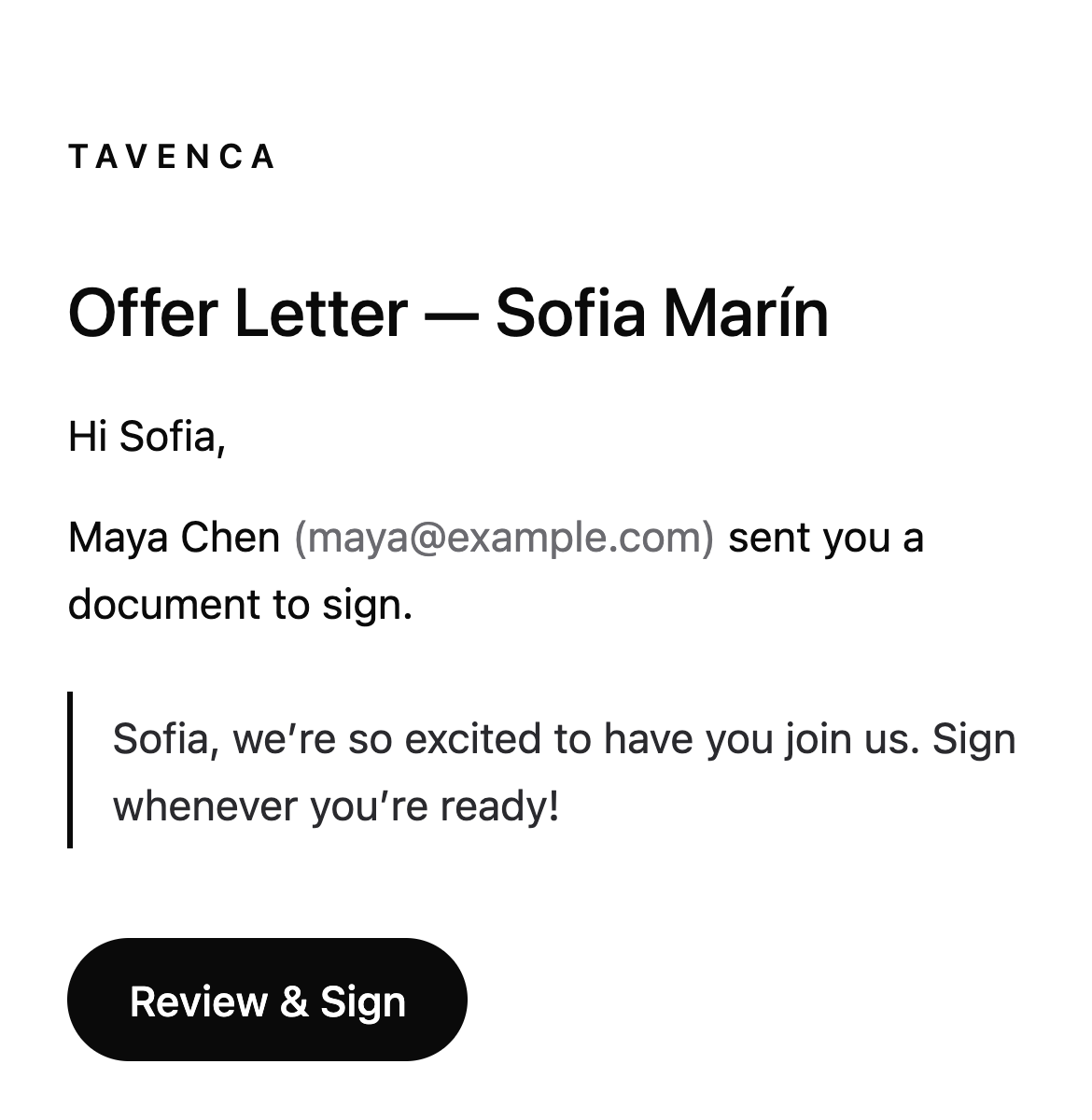
Step 1: Open the email and tap Review & Sign
The email comes from the sender through Tavenca and greets you by name. Tap the link, then Review & Sign. Opening the link doesn’t sign anything.
Step 2: Confirm it’s you, if asked
Some senders ask for a one-time code. Tavenca emails you a 6-digit code; enter it to open the document. Codes expire after 10 minutes.
Step 3: Agree to sign electronically
Read the short disclosure, check I agree to use electronic records and signatures for this document, and choose Continue.
Step 4: Fill in your fields
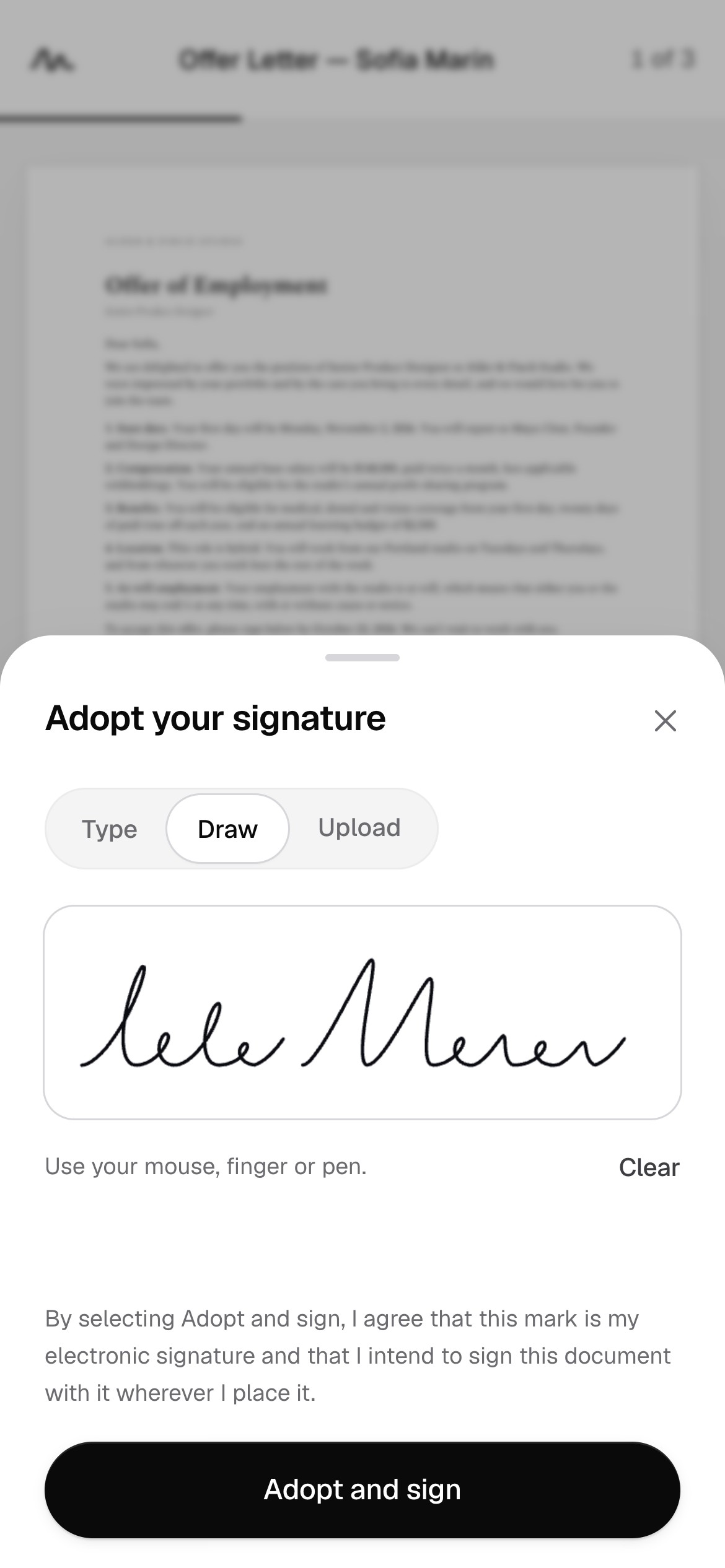
Tavenca guides you from field to field. For your signature, choose Type, Draw or Upload; drawing with your finger works well on a phone. It’s placed wherever your signature is needed.
Step 5: Finish signing
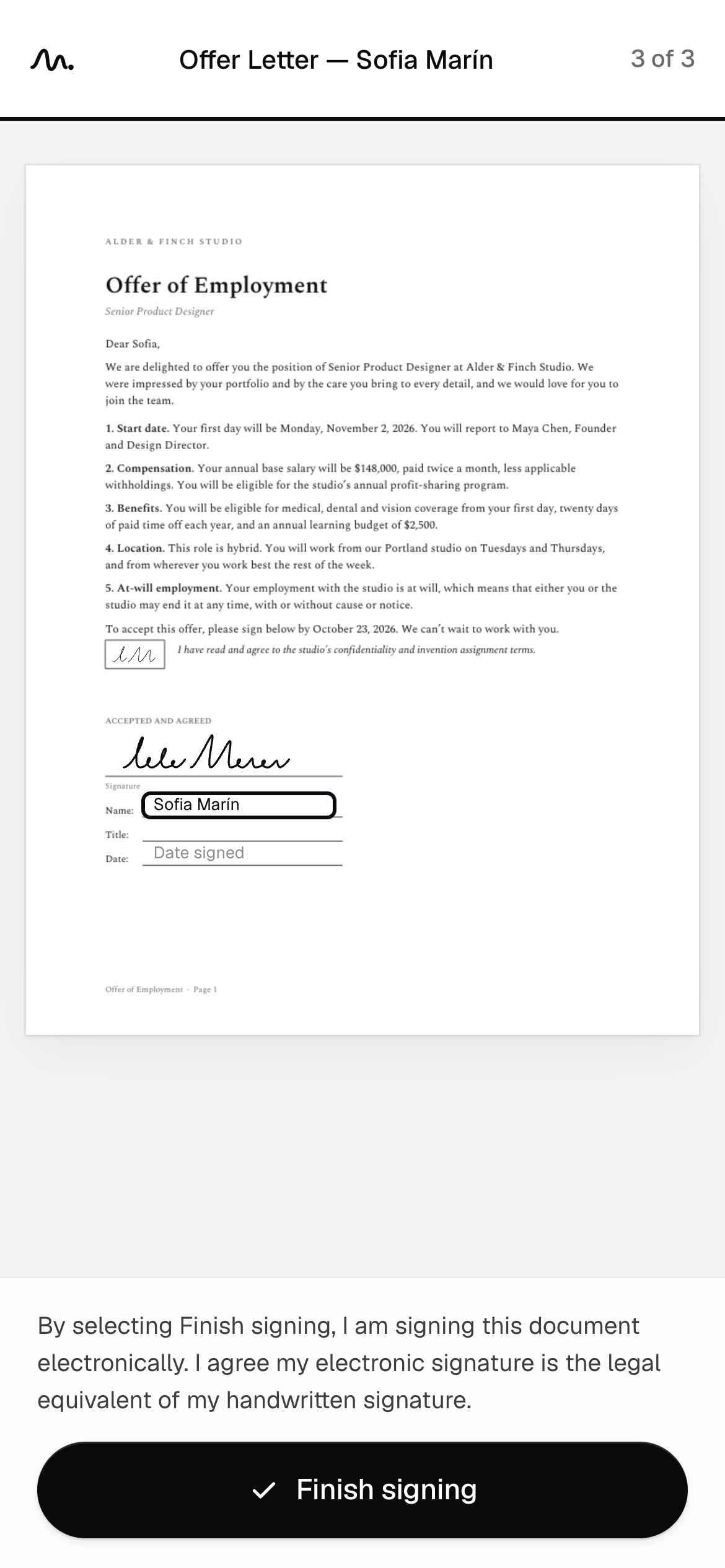
Check everything, then tap Finish signing; nothing is signed until you do. When everyone has signed, you get an email with a link to the completed PDF. Save a copy, because your download link expires after 30 days.
Good to know
- You don’t need to install an app or create an account. Any current browser works, on iPhone, Android or a computer.
- You only see and fill the fields meant for you.
- Don’t want to sign? You don’t have to. Let the sender know, and they can void the document.
- Didn’t expect the document? Don’t sign it. Check with the sender, and if the email looks like phishing, forward it to support@tavenca.com.
Free, unlimited e-signatures.
No credit card, no trial, and no account needed to start.