How to send a document for e-signature
Getting a contract, offer letter or agreement signed takes a few minutes. Here’s how to send one with Tavenca and follow it until it’s done.
Updated
Step 1: Upload your PDF
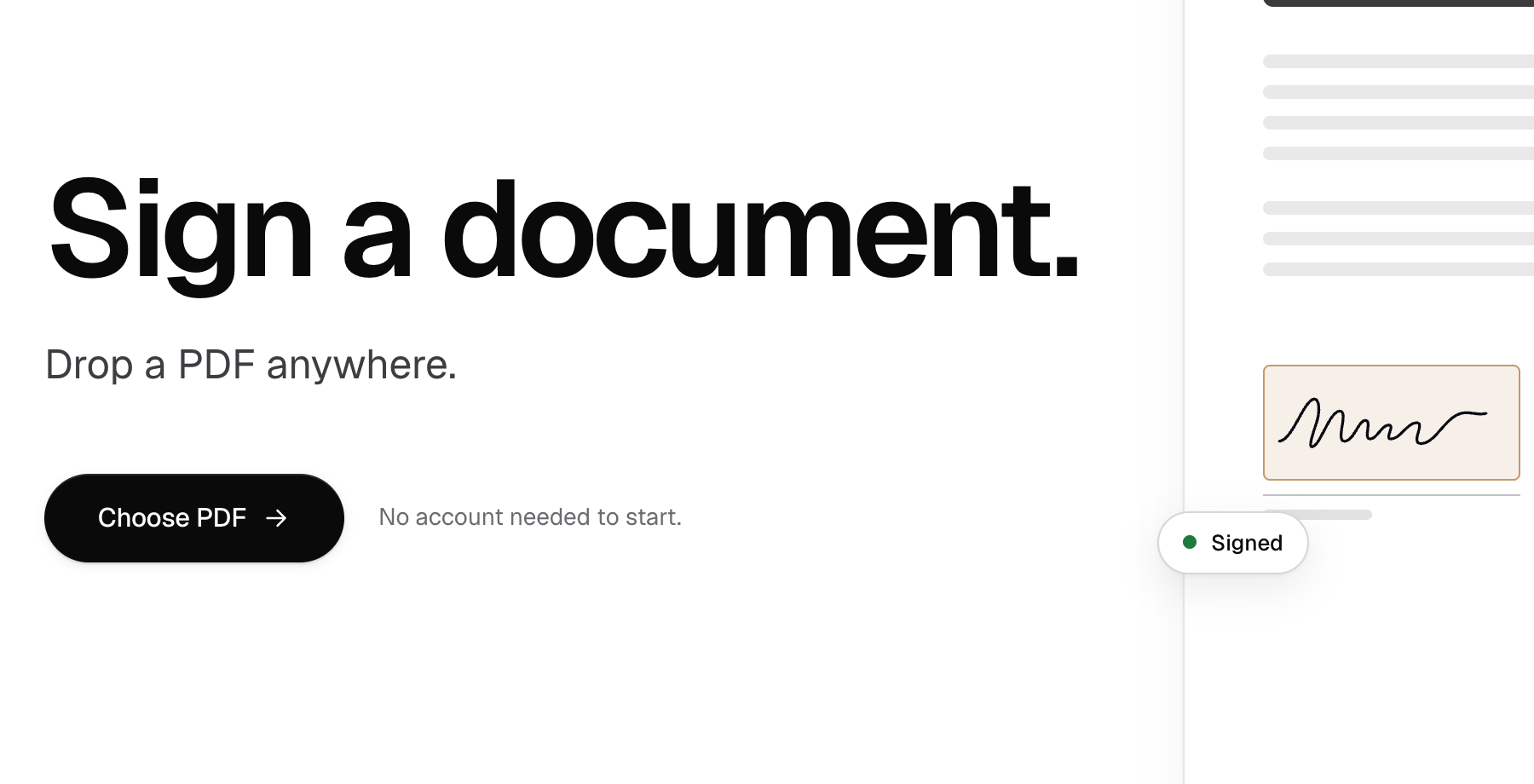
Go to app.tavenca.com and choose your PDF, or drop it on the page. You can place every field before you have an account.
Step 2: Place fields for each signer
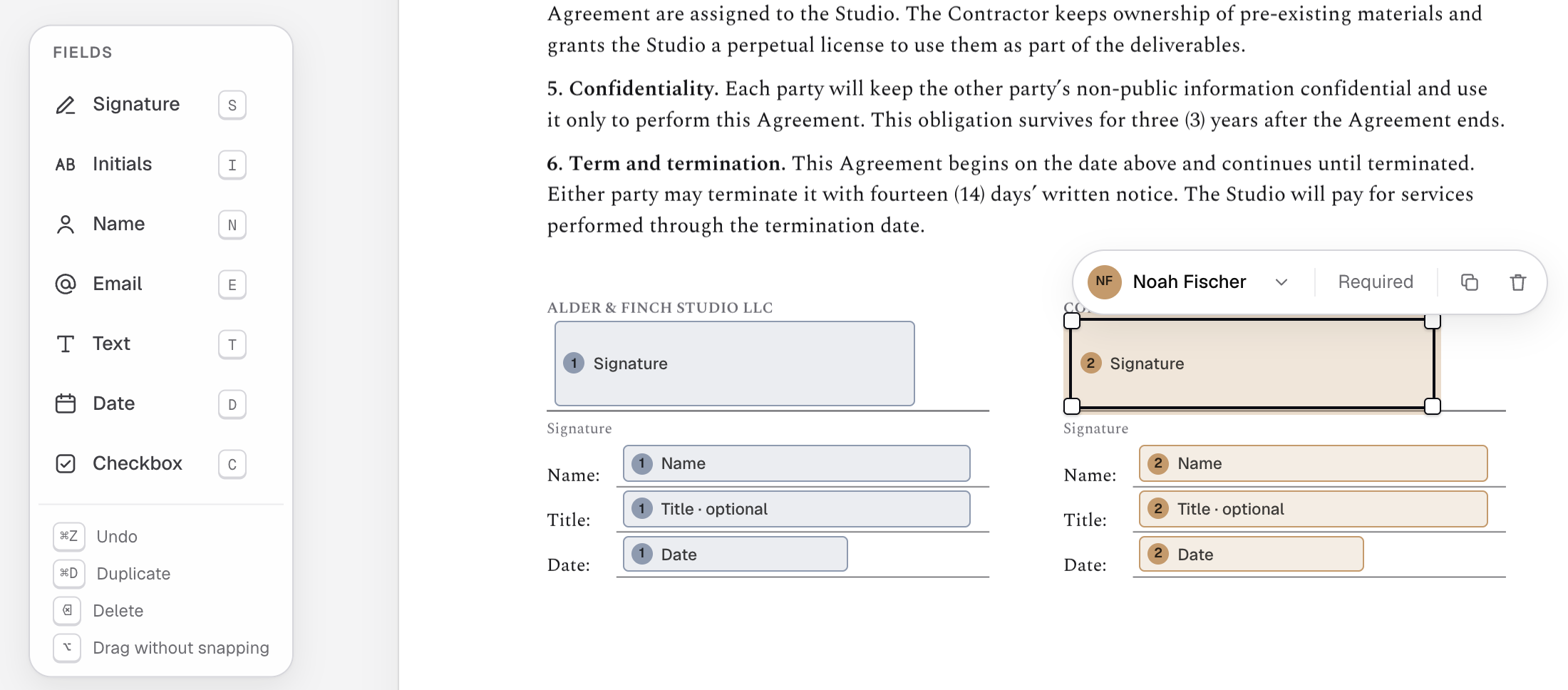
Choose who new fields are for from the signer menu at the top, and add signers there too. Then place signatures, initials, names, emails, dates, text and checkboxes. Each signer’s fields are color-coded and numbered, and they only see and fill their own.
Step 3: Add signers and choose the order
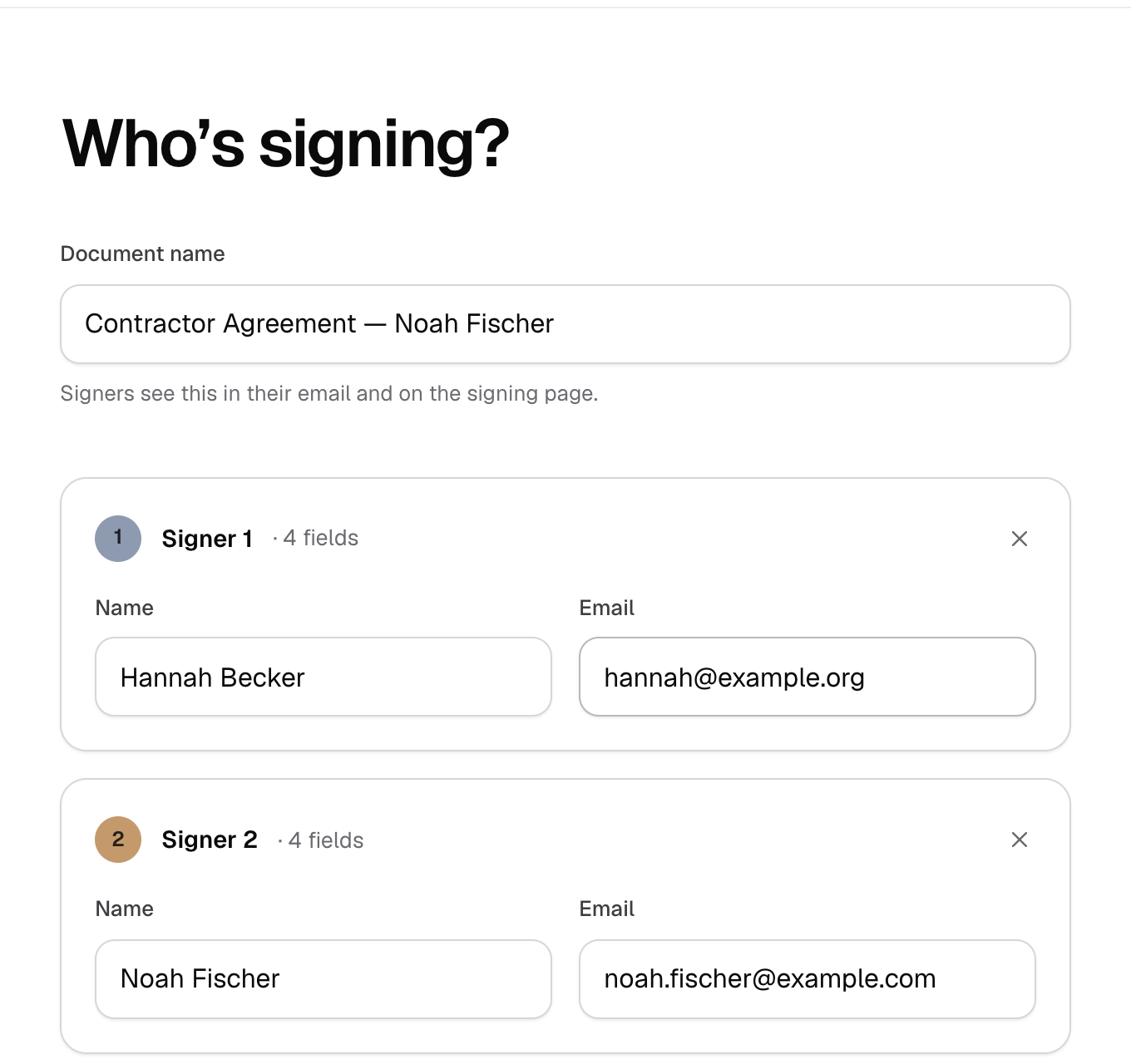
Choose Continue and enter each signer’s name and email. Pick Any order or One after another, and add a message if you like. For extra assurance, turn on Ask signers to confirm their email: each signer then enters a one-time code from their inbox before the document opens.
Step 4: Send it
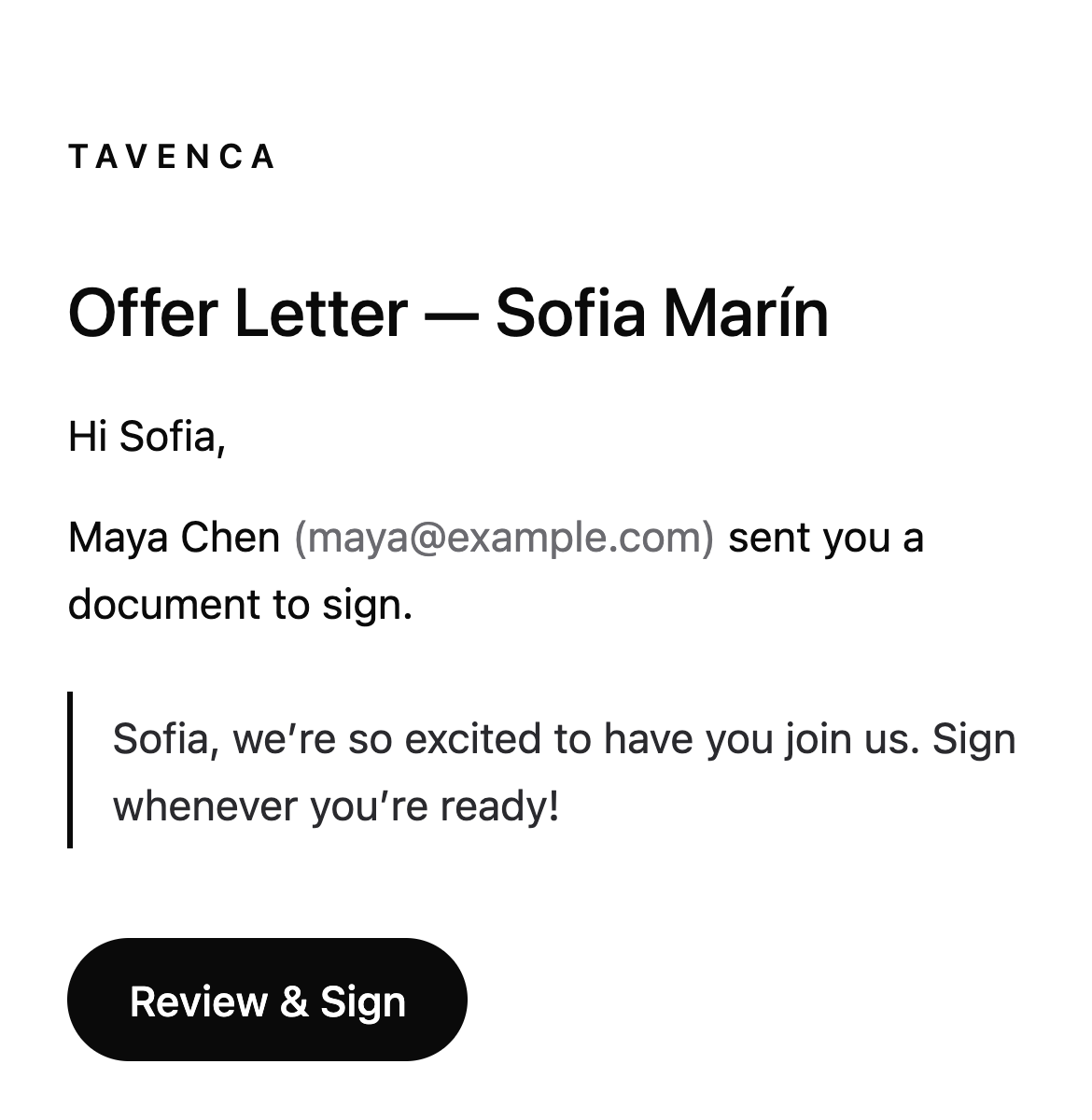
Choose Send. The first time, you confirm your email with a 6-digit code instead of a password. Each signer gets an email that greets them by name, with a personal link of their own. Replies come straight to you.
Step 5: Track it until it’s signed
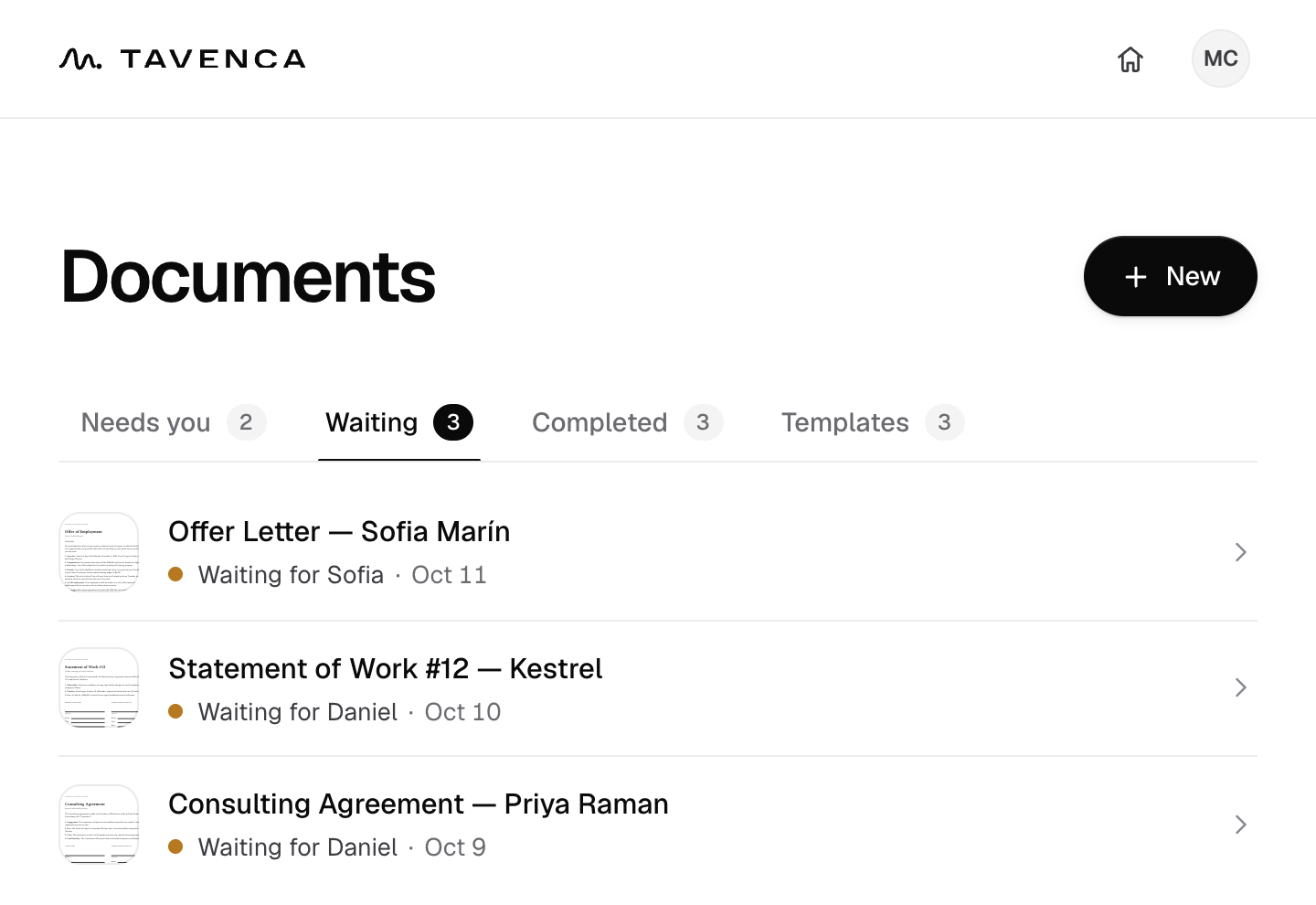
Your documents list shows who has signed, who’s next and what’s waiting on you. Remind anyone who hasn’t signed with one click. When the last person signs, everyone gets the completed PDF and its certificate of completion.
Good to know
- Signers don’t need an account or an app. They sign in a current web browser, on a phone or a computer.
- A document can have up to 50 signers, and PDFs can be up to 4 MB.
- Send the same kind of document often? Make it a template, and the fields are in place every time.
- Signing links expire after 30 days. Each signer can be reminded at most once a day, and five times in all.
- Once sent, a document can’t be changed, so everyone signs exactly the same thing. To fix something, void it and send a corrected one.
Free, unlimited e-signatures.
No credit card, no trial, and no account needed to start.