How to make a reusable e-signature template
If you send the same contract, release or offer letter again and again, a template saves you placing the fields each time. Here’s how to make one with Tavenca, free.
Updated
Step 1: Save a document as a template
In your documents, open a draft’s ⋯ menu and choose Save as template, or open a document you’ve sent and choose Save as template there. To start from a PDF instead, open the Templates tab and choose New template.
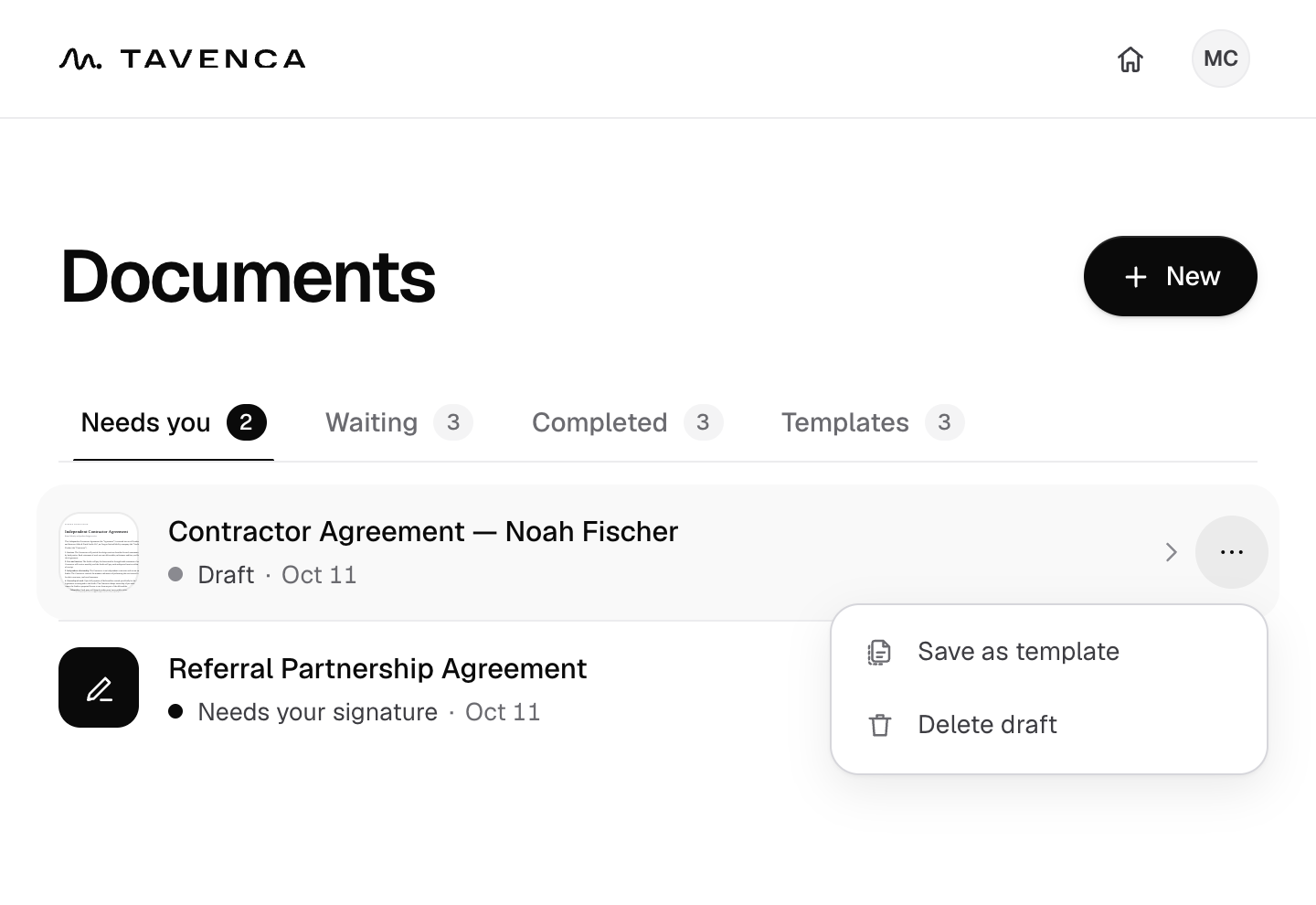
Step 2: Place the fields once
The template opens in the editor, marked Template. Place signatures, initials, names, dates and more just as you would in a document, and add a signer from the menu at the top for each person who will sign. They’re called Signer 1, Signer 2 and so on; the actual people come later. Choose Done to save it.
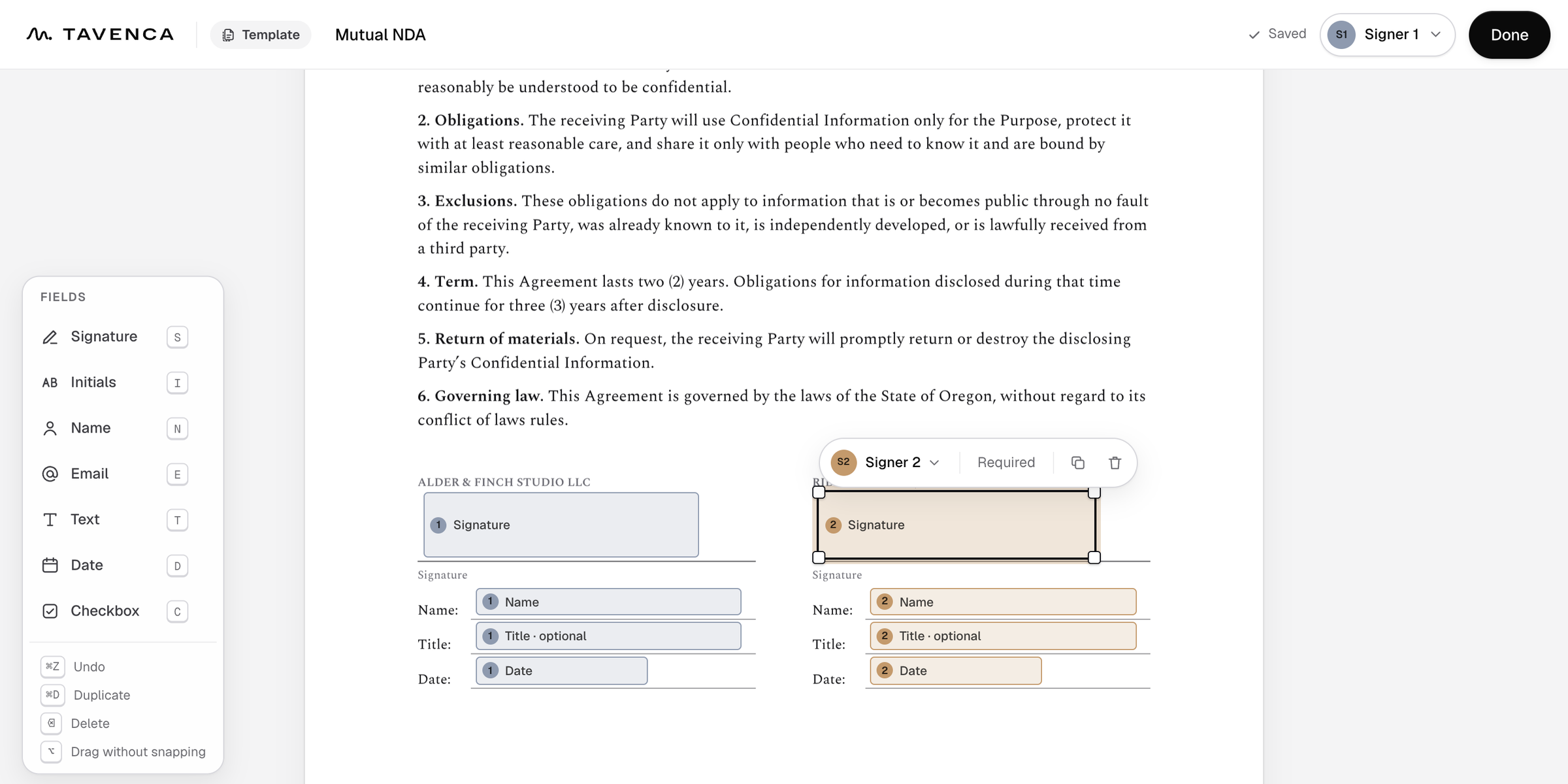
Step 3: Start a document from it
On the Templates tab, choose Use beside the template. A new draft opens with the PDF and every field already in place.
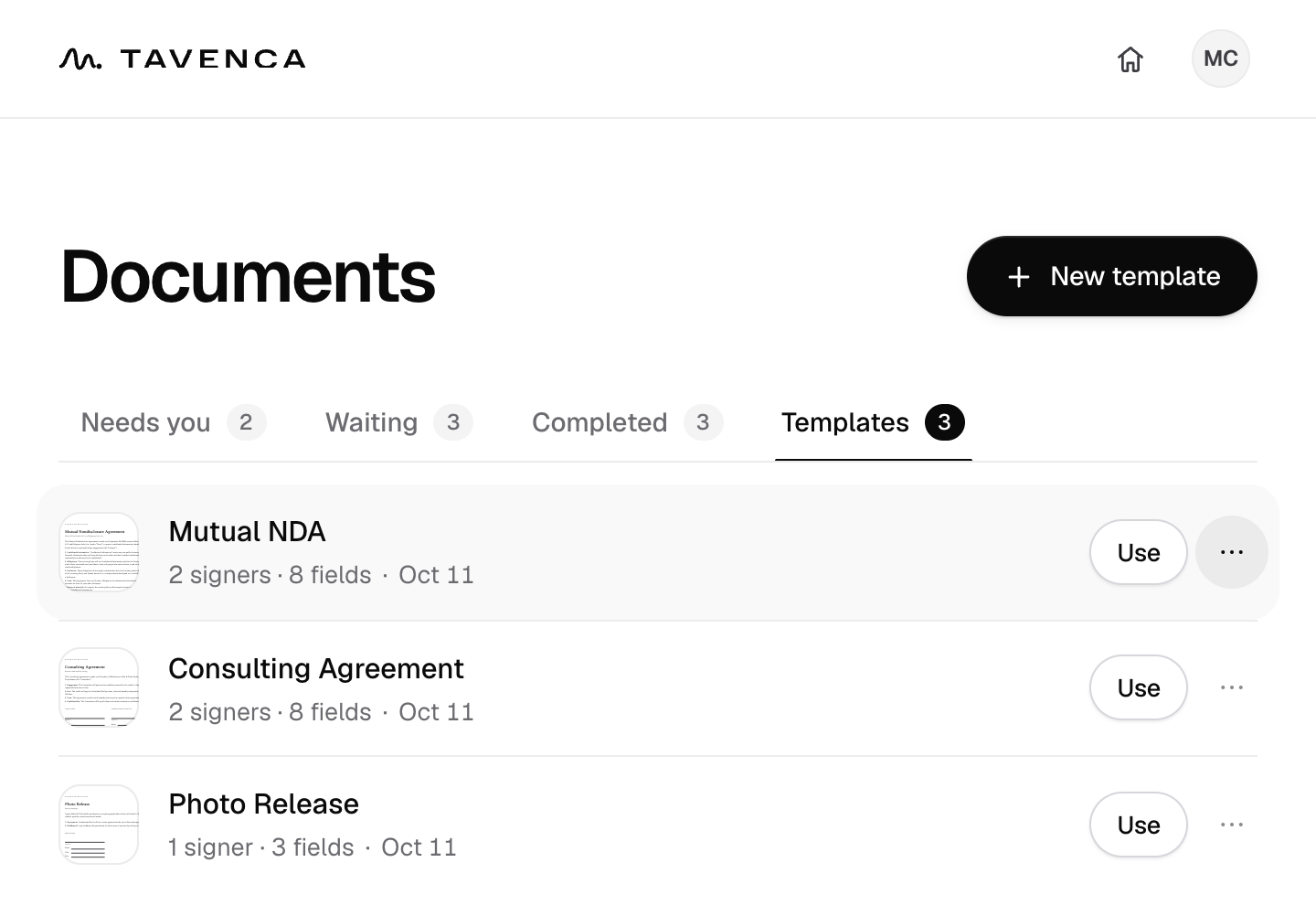
Step 4: Add the signers and send
The new draft is yours to adjust: move, add or remove fields if this one needs something different. Then choose Continue, enter each signer’s name and email in place of Signer 1, Signer 2 and so on, and choose Send.
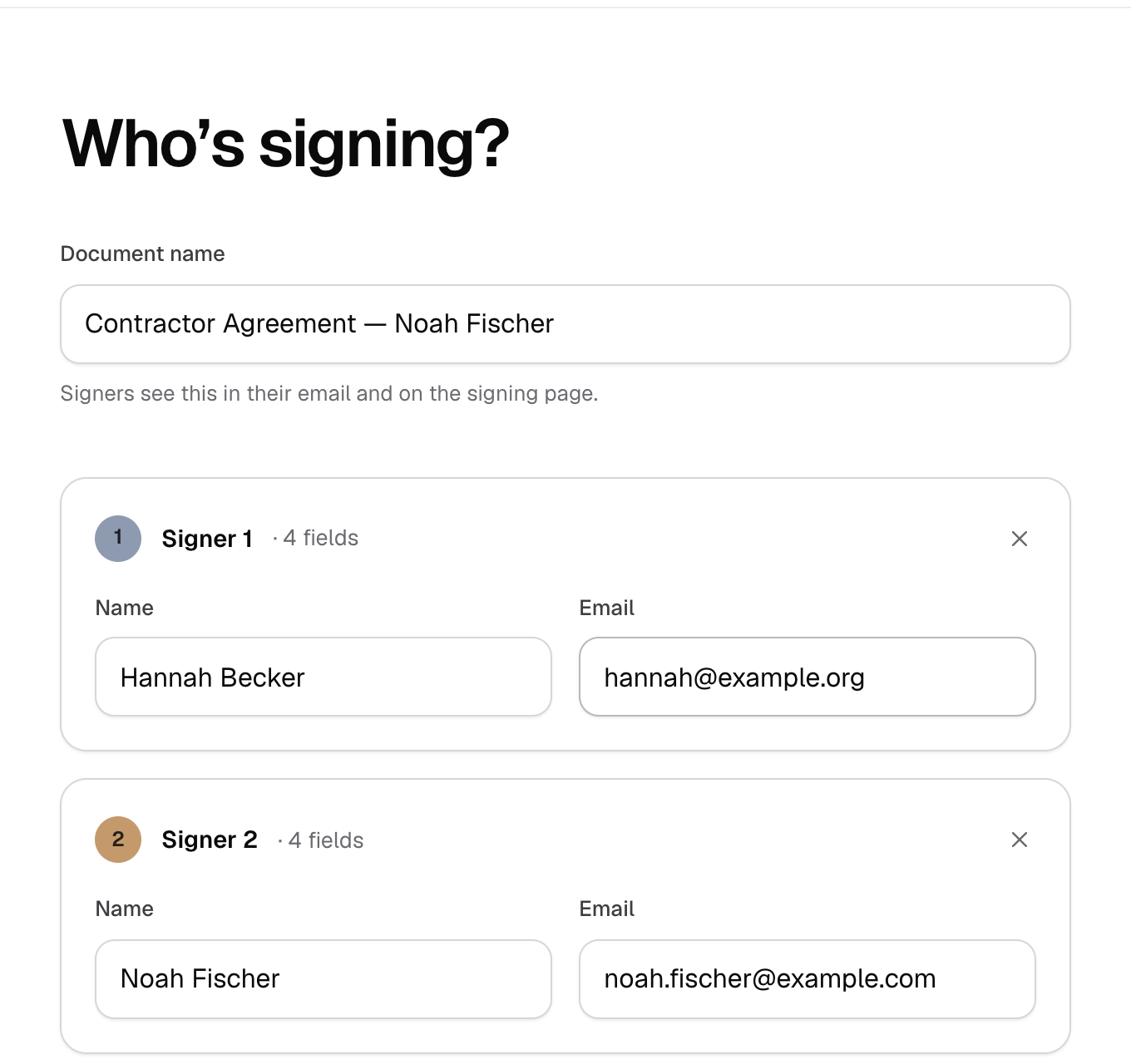
Good to know
- Templates are free. You can keep up to 100, and each document can have up to 50 signers.
- A template keeps the PDF and where each signer’s fields go. It doesn’t keep your signers’ names or email addresses.
- Editing or deleting a template doesn’t change the documents you’ve already made from it.
- Each document you start from a template goes through the same safety checks as a new upload.
Free, unlimited e-signatures.
No credit card, no trial, and no account needed to start.