How to check a signed PDF hasn’t been changed
A PDF can be edited after it’s signed. Here’s how anyone can check that a copy signed with Tavenca is exactly the completed document, without uploading it anywhere.
Updated
Step 1: Find the verification ID
Every page of a completed Tavenca document carries a verification ID at the top, and its certificate of completion includes a verification link.
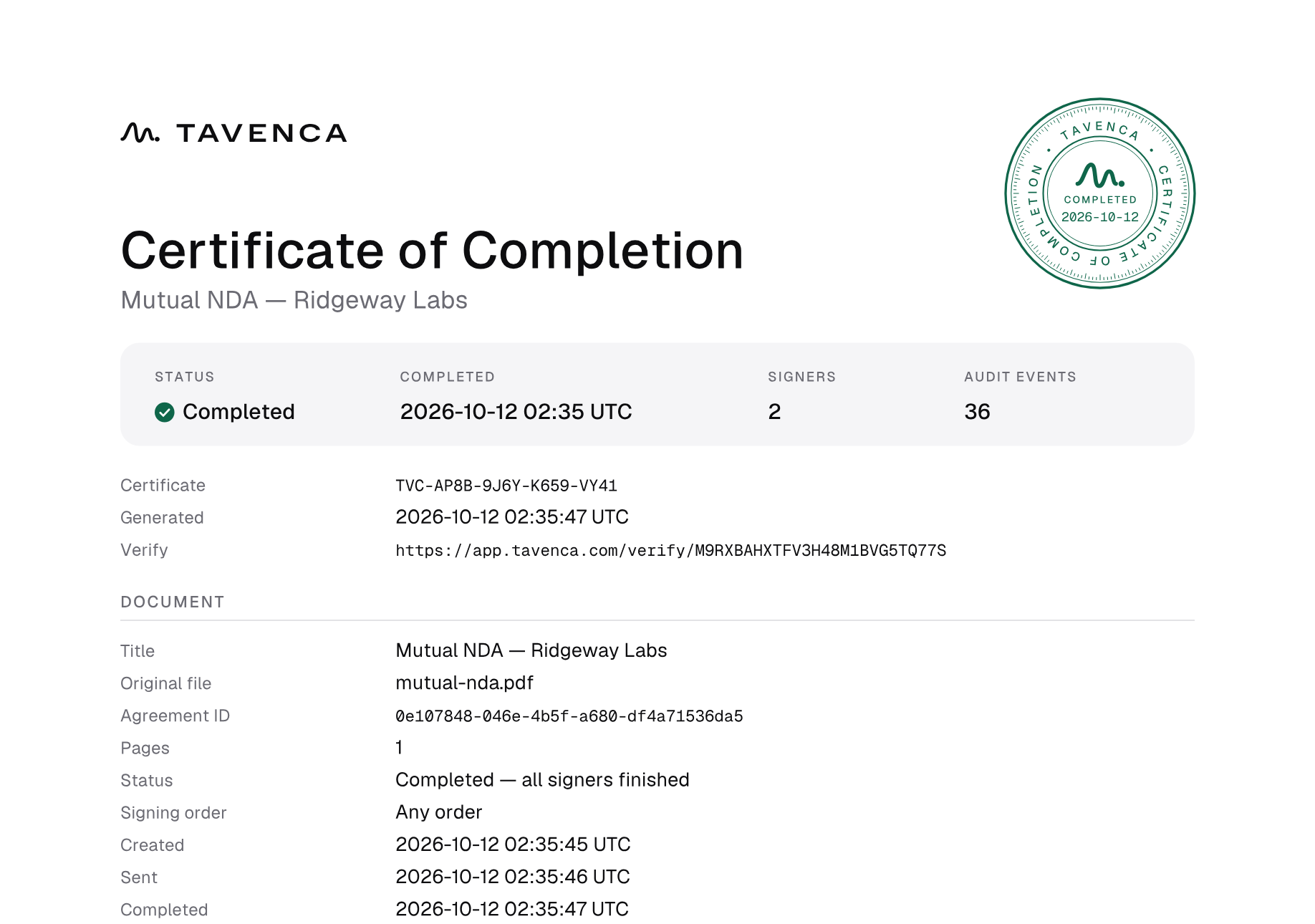
Step 2: Open the record
Follow the link, or enter the ID at app.tavenca.com/verify and choose Check. For a document completed with Tavenca, you’ll see A completed record exists, with when it was completed and how many people signed. The page never shows names, emails or the document’s title.
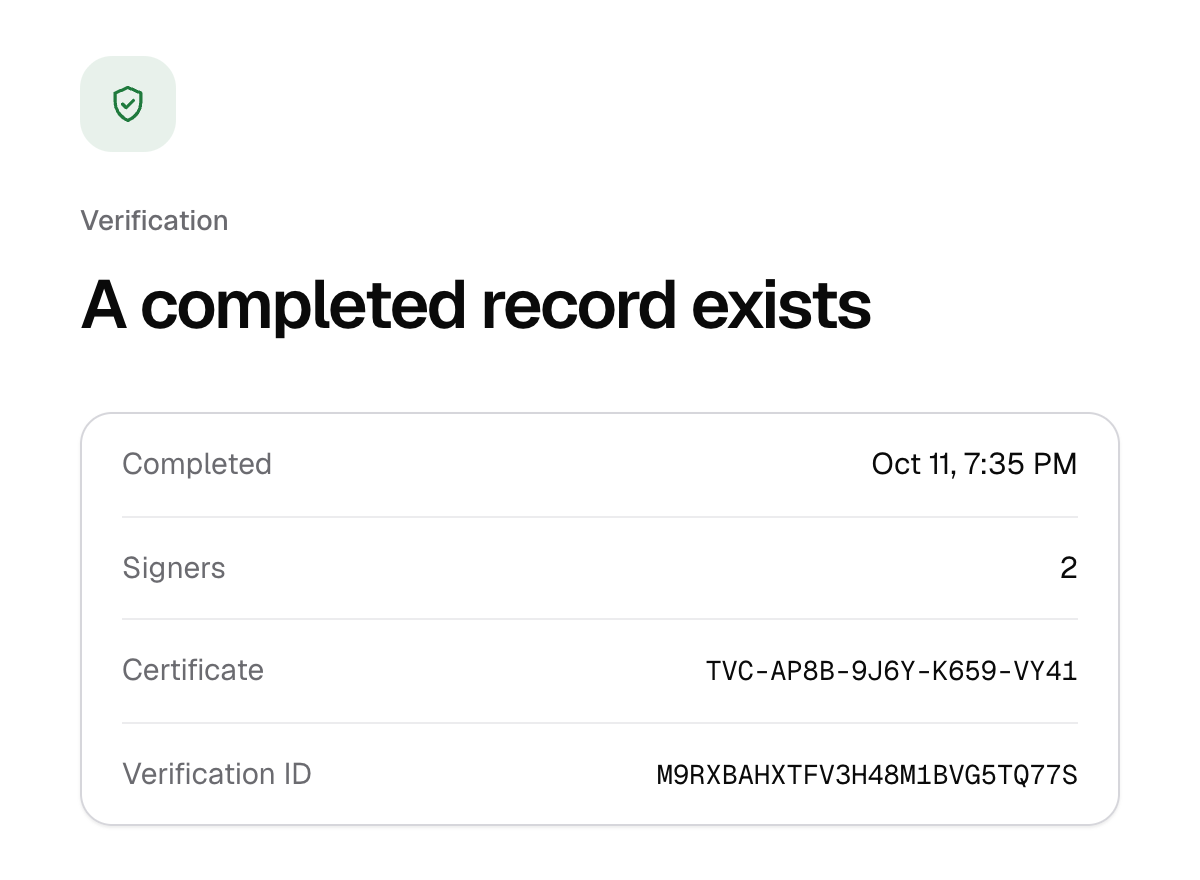
Step 3: Check your copy
Under Check a copy, drop the PDF or choose it. Your browser computes its SHA-256 fingerprint on your device and compares it with the record; the file is never uploaded. Authentic means it’s exactly the completed document, byte for byte. Doesn’t match means it has been modified, or it’s a different document.
Good to know
- A fingerprint (a SHA-256 hash) changes completely if even one byte of the file changes, so a match means nothing was altered.
- You can check a certificate of completion the same way.
- Each completed document and its audit trail are also timestamped by an independent authority, and those timestamps can be checked with standard tools. The security specs have the details.
Free, unlimited e-signatures.
No credit card, no trial, and no account needed to start.